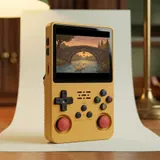
Built-in 2.4 GHz Wi-Fi, and no Bluetooth
The Wi-Fi module is built into the console. There's nothing to plug in: no USB dongle, no adapter. That's a real difference from the R36S, which has no built-in Wi-Fi: there, the only option is a USB dongle in the OTG port, depending on the installed system. On the R36S Plus, the USB-C port marked OTG, on the bottom edge, stays free for an accessory. The module works on 2.4 GHz only: no 5 GHz, no dual-band. And what the connection lets you do always depends on the installed system.
One more thing to know before you buy: the console has no Bluetooth. That means no wireless controller, and no wireless headphones or speaker. For sound, you have the front speaker and the 3.5 mm headphone jack in the middle of the bottom edge. Wi-Fi doesn't add any power either: the chip is the same as on the R36S. It's there for networking, not for accessories or emulation.
Getting connected: the console menu and a 2.4 GHz network
You set up the connection in the console menu, under the network settings. The exact name and location vary depending on the installed system, but the idea is the same: turn Wi-Fi on, pick your network, then type the password using the D-pad and buttons. You need a 2.4 GHz network. Many broadband routers broadcast both bands, sometimes under one name, sometimes under two separate names. If you see two networks, choose the 2.4 GHz one.
A 5 GHz-only network won't show up in the list. That's not a fault: the console simply doesn't pick up that band. If this happens, turn on the 2.4 GHz band in your router's settings, or set up a 2.4 GHz guest network. A mobile hotspot from your phone can also do the job, as long as it's set to 2.4 GHz.
| Use | What you need | Depends on |
|---|---|---|
| Cover art and images (scraper) | 2.4 GHz network, games already on the card, clear file names | Installed system and the scraping tool it offers |
| RetroAchievements | Free account, 2.4 GHz network | Installed system and each game's compatibility |
| PortMaster | 2.4 GHz network, free space on the games card | Installed system and each port's page |
| Updates | 2.4 GHz network, console on charge, backup recommended | What the installed system offers |
| File transfer | Computer on the same network | Installed system and sharing turned on |
| Online play, streaming, video | No solution provided | Not available on this model |
Cover art for a tidy library on the square screen
The scraper is often the first reason people turn Wi-Fi on. Depending on the installed system, it looks up an online database and fetches cover art, screenshots and images for the games already on your card. It doesn't download any games: it dresses up the ones you already own. You start it from the menu, for a whole system or for a single game. How long it takes depends on the number of files and your connection. So you can run it once, then get back to playing.
The 720 x 720 square screen gives you plenty of room. Depending on the theme you choose, the EmulationStation-style menu can show the cover art, an image and the title on one screen. A list of file names becomes a library you can browse at a glance. It's worth naming your files properly: the scraper recognises a game more easily when its name is clear.
RetroAchievements and PortMaster: two extra uses
RetroAchievements adds achievements to retro games. You need a free account, created on the service's website, then entered in the console settings, depending on the installed system. After that, in supported games, achievements unlock as you play and are added to your profile. The connection links each session to your account. Not every game is covered: check compatibility game by game, directly on the service.
PortMaster is a catalogue of free ports and homebrew games. Depending on the system, it opens from the console, and Wi-Fi lets you install ports directly, without going through a computer. Keep some free space on your games card, and read each port's page before installing it: it tells you what it needs to run.
Updates and file transfer from a computer
Depending on the installed system, Wi-Fi lets you run the updates the system offers, straight from the menu. Before starting an update, put the console on charge through the USB-C port marked DC, using a 5 V adapter of at least 1.5 A. A USB-C cable is included, but no mains charger. Don't switch the console off during the update. Backing up the system card, in the TF1-OS slot, is a sensible precaution before any major change.
File transfer works when the console and the computer are on the same network. Depending on the system, the console shows up as a shared folder: you copy your saves, images or the games you're entitled to use onto the TF2-GAME card, without removing the microSD. For large amounts of data, reading the card directly on the computer is often quicker.
What the Wi-Fi doesn't do
The R36S Plus Wi-Fi doesn't open the door to online gaming. You can't play over the internet, and you can't start a network multiplayer game between two consoles. It isn't for streaming games from a computer, and it doesn't run any video apps: no video sites, no TV streaming services. The console has no HDMI or TV output either. Its role is more modest and more useful day to day: dressing up, adding to and looking after your library.
When you play, everything happens on the console, using the games on the TF2-GAME card. Wi-Fi plays no part in how the emulators run. If a listing promises videos or online play on this model, ask for details before you order: those uses aren't part of what the Wi-Fi offers here.
- No online play
- No network multiplayer between two consoles
- No game streaming
- No video apps
- No Bluetooth, no 5 GHz Wi-Fi
Security and privacy: good habits
Connect the console to your own password-protected network, or to your router's guest network. Avoid open public Wi-Fi, especially if you use file transfer: a shared folder visible to the whole network has no place in a coffee shop. Install updates when the system offers them, as they can fix bugs. Turn Wi-Fi off when you're not using it: it limits exposure, and it may help save battery.
For RetroAchievements, choose a password you don't use anywhere else. If the system offers file sharing or remote access, turn it on only when you need it, then turn it off again. The R36S Plus sold here is the 4-inch square-screen version, with built-in 2.4 GHz Wi-Fi and an open-source Linux system preinstalled.
Frequently asked questions
Do I need to leave Wi-Fi on while I play?
No, not usually. Cover art, ports and updates are fetched once, then the console works without a connection. Wi-Fi is only useful during play if you want RetroAchievements to record your achievements on your profile. The rest of the time, you can turn it off in the menu, depending on the installed system.
Would a 5 GHz Wi-Fi dongle in the OTG port let me connect to my router on 5 GHz?
There's no guarantee. The built-in module works on 2.4 GHz, and support for an external dongle depends entirely on the installed system and its drivers. It isn't an intended use on this model. The simple fix is to turn on your router's 2.4 GHz band or use a 2.4 GHz guest network.
Can I still play my games if I never have a connection?
Yes. You don't need Wi-Fi to play. Games launch from the TF2-GAME card, and the menu simply shows their names instead of cover art. You only lose the connected features: scraper, RetroAchievements, PortMaster, updates and wireless transfer. You can always copy your files by reading the microSD on a computer.
Sources
- Handhelds Wiki, R36Plus
- Retro Handhelds, R36Plus review (May 2025)
- Notebookcheck, R36S Plus: 1:1 retro gaming handheld
- RetroAchievements
- PortMaster
Our guides are based on the supplier's product sheets and public documentation. We do not claim any hands-on testing.